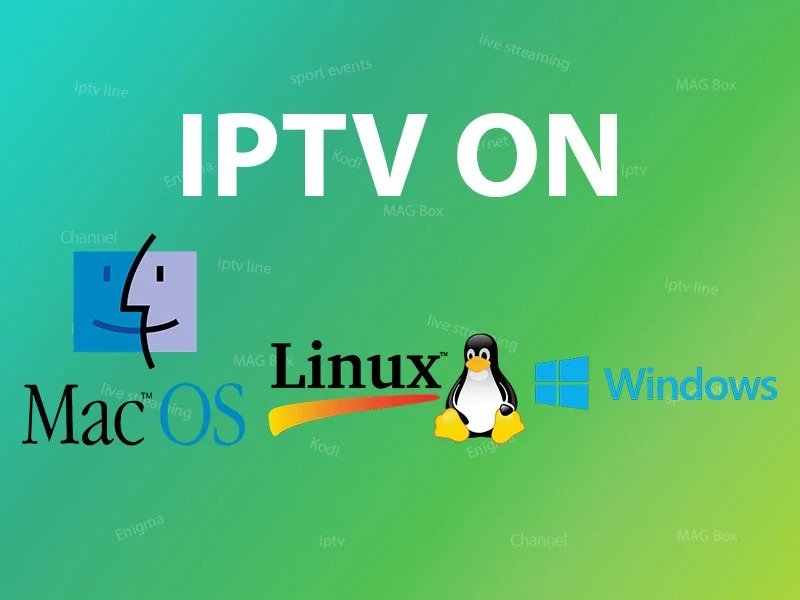
How can my computer watch IPTV?
  How can my computer watch IPTV? As a flexible service, IPTV offers a range of viewing choices on a variety of devices. Using laptops or other personal computers to access IPTV is one of the more simple options. This function is served by a variety of free software programs and applications, such as VLC [...]
 

How can my computer watch IPTV?

As a flexible service, IPTV offers a range of viewing choices on a variety of devices. Using laptops or other personal computers to access IPTV is one of the more simple options. This function is served by a variety of free software programs and applications, such as VLC and Kodi media players, which enable IPTV playback on Macintosh-based operating systems, Linux, or Microsoft Windows.
 

Both Mac and PC versions of VLC

Windows Media Player, QuickTime, Winamp, and VLC Media Player are just a few of the many free options available to PC users. Get the VLC media player and install it first. When VLC first launches, go to the top of the screen, select "Media," and then "Open Network Stream." After that, wait for the channel to load after pasting your M3U line. When the playlist is fully loaded, pick a channel to enjoy your preferred show. For your convenience, a thorough step-by-step guide is provided below. How can I configure IPTV in VLC? You can watch IPTV channels on your PC with Kodi as well. Here are instructions for configuring IPTV on Kodi. The suggested program is the: VLC media player

Using IPTV on a Mac

The GSE app is an additional choice for Mac users in addition to VLC. Here are instructions for using the GSE app to set up IPTV on a Mac. Another great option for watching IPTV on iOS devices is the IP television app. The suggested program is the: VLC media player

Using IPTV on Linux

Kodi is an open-source home media hub that was formerly known as XBMC (Xbox Media Centre). Kodi is the best option for Linux users who want to watch IPTV channels Linx. Kodi's installation procedure is surprisingly simple. Just double-click the Kodi image after downloading it, then follow the setup instructions. That's how easy it is! After installing Kodi, users can download a wide range of add-ons to improve their experience. We describe the installation procedure below. Recommended use case: KODI Regarding this article, we appreciate your thoughts and comments. To help us improve the caliber of our content, kindly leave your comments in the space provided below. I appreciate your contribution in advance.
error: Alert: Content selection is disabled!!